
Use this guide to add the measured batch weights and Agtron colour readings to a saved roast in Giesen Profiler 2. These values help you keep a record of the result alongside the roast curve.
You can add or correct these values after the roast has been saved. Have the green and roasted coffee weights for that batch ready, excluding the containers. For colour readings, use an instrument that reports on the Agtron scale. You can leave an unmeasured colour field blank.
Open the saved roast
- Open Roasts and select the roast you want to update.
- Check its name and date to make sure you have the correct batch.
- Wait for the roast details to load. Open an online-only record while you have internet access.
Enter the measured weights
Use the net coffee weights for this batch. The fields show the following values:
| Field | What it shows |
|---|---|
| Start Weight | The green coffee weight charged for this batch. |
| End Weight | The roasted coffee weight collected for this batch. |
| Weight Change — Amount | The weight lost, calculated from the start and end weights. |
| Weight Change — Percentage | The weight lost as a percentage of the start weight. |
- Check the unit next to Start Weight and End Weight. Enter kilograms for kg or pounds for lb; for example, 5 kg is 5.00 in a kg field.
- Enter the measured green coffee weight in Start Weight. Use a positive value.
- Enter the measured roasted coffee weight in End Weight.
- Check Amount and Percentage under Weight Change. Profiler calculates the loss from the two weights.
To change the displayed unit, open Settings → General → Units → Weight, choose Kilogram or Pounds and select Apply Changes. Return to the roast and check the field unit again.
If the end weight exceeds the start weight, check the measurements, units and container weights before saving.
Add the Agtron colour readings
Use the fields labelled Color (Beans) (Agtron) and Color (Ground) (Agtron).
| Field | Measurement |
|---|---|
| Color (Beans) | The Agtron reading measured on whole roasted beans. |
| Color (Ground) | The Agtron reading measured on ground roasted coffee. |
- Measure the sample using your instrument's procedure and Agtron scale.
- Enter the whole-bean result in Color (Beans).
- Enter the ground-coffee result in Color (Ground).
- Leave a field blank if you have not measured that sample type.
The fields accept values from 0 to 150, with up to one decimal place. Enter the measured Agtron value; do not enter a percentage or a value from a different colour scale. Profiler does not convert another scale when you type a number into these fields.
Whole-bean and ground-coffee readings belong in separate fields. Enter each measurement in its matching field. Use a consistent instrument, scale and sample preparation when comparing batches.
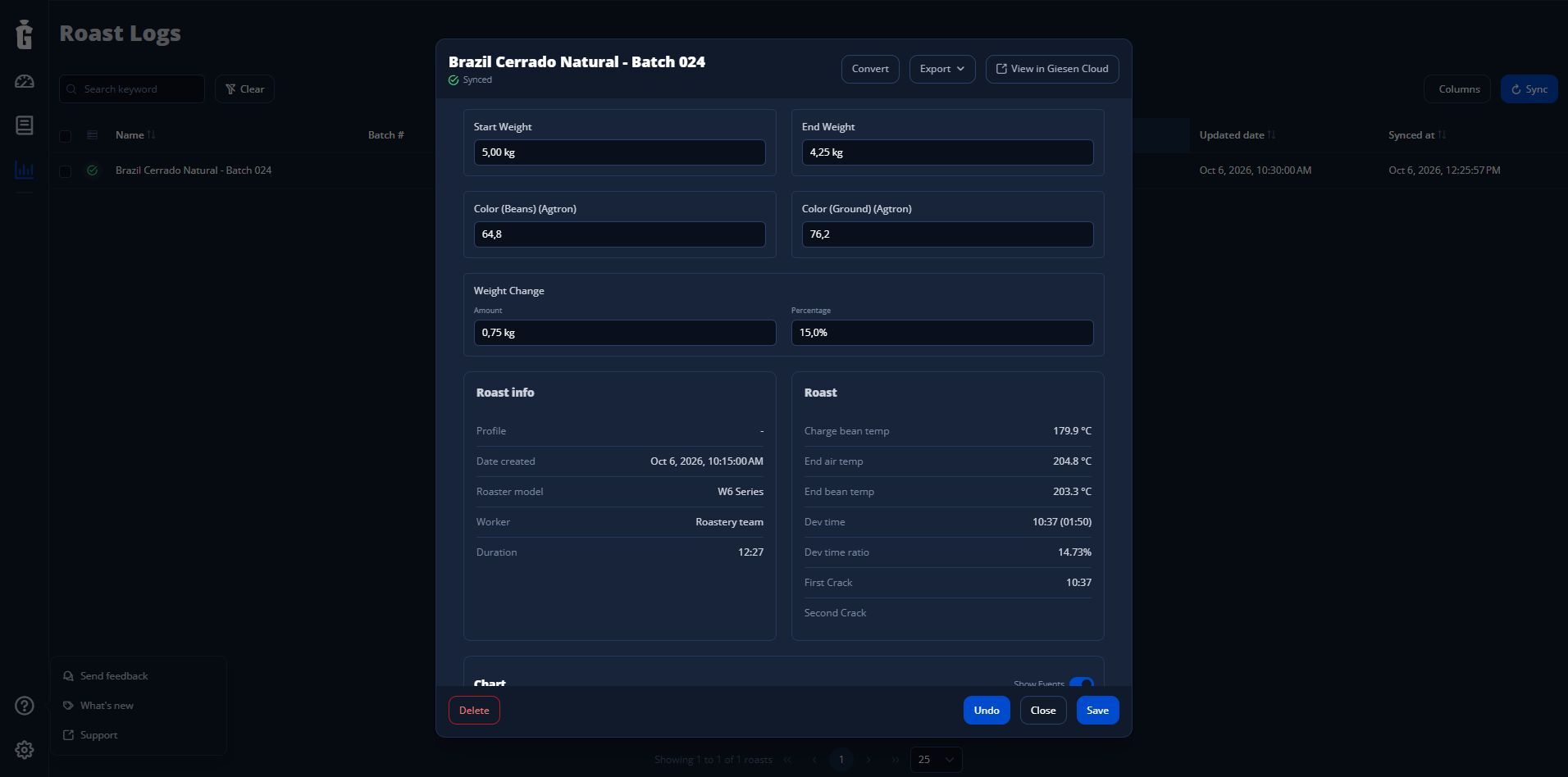
Example roast details: 5.00 kg start weight, 4.25 kg end weight, 0.75 kg loss (15%), and separate whole-bean and ground-coffee Agtron readings. Use your own measured values, then select Save.
Save and check the updated roast
- Review the batch name, weight units, start and end weights, loss and colour values.
- Select Save. The button appears after you change a value. The roast window closes after a successful save.
- Reopen the same roast from Roasts and confirm that the values are still present.
Select Undo to restore the values from when you opened the roast. Close exits without saving your edits, so use Save when you want to keep them.
On the desktop app, the local save and cloud upload are separate steps. If you need the updated values in GiesenCloud or on another computer, check the roast's sync status. Follow Resolve cloud synchronisation problems in Giesen Profiler 2 if the changes are missing.
Understand weight loss
Weight loss amount = Start Weight − End Weight
Weight loss percentage = (Start Weight − End Weight) ÷ Start Weight × 100
| Example measurement | Value |
|---|---|
| Start Weight | 5.00 kg |
| End Weight | 4.25 kg |
| Weight Change — Amount | 0.75 kg |
| Weight Change — Percentage | 15.0% |
These are example values, not a target for your roast. Use your own batch measurements. The displayed values are rounded.
If the start or end weight is missing or zero, Profiler can show a loss of 0%. Check that both weights are filled in before interpreting the result.
Enter a loss amount or percentage directly
You can also edit Amount or Percentage under Weight Change after entering a positive start weight. Profiler then recalculates End Weight.
For example, a start weight of 5.00 kg and a loss of 15.0% produce an end weight of 4.25 kg. Check End Weight after changing either loss field. The resulting end weight is calculated; replace it with the measured batch weight when that measurement is available.
Show weights in the roast list
In Roasts, open Columns and enable Start Weight, End Weight, Weight Loss and Weight Loss %. These columns help you review saved batch weights without opening each roast.
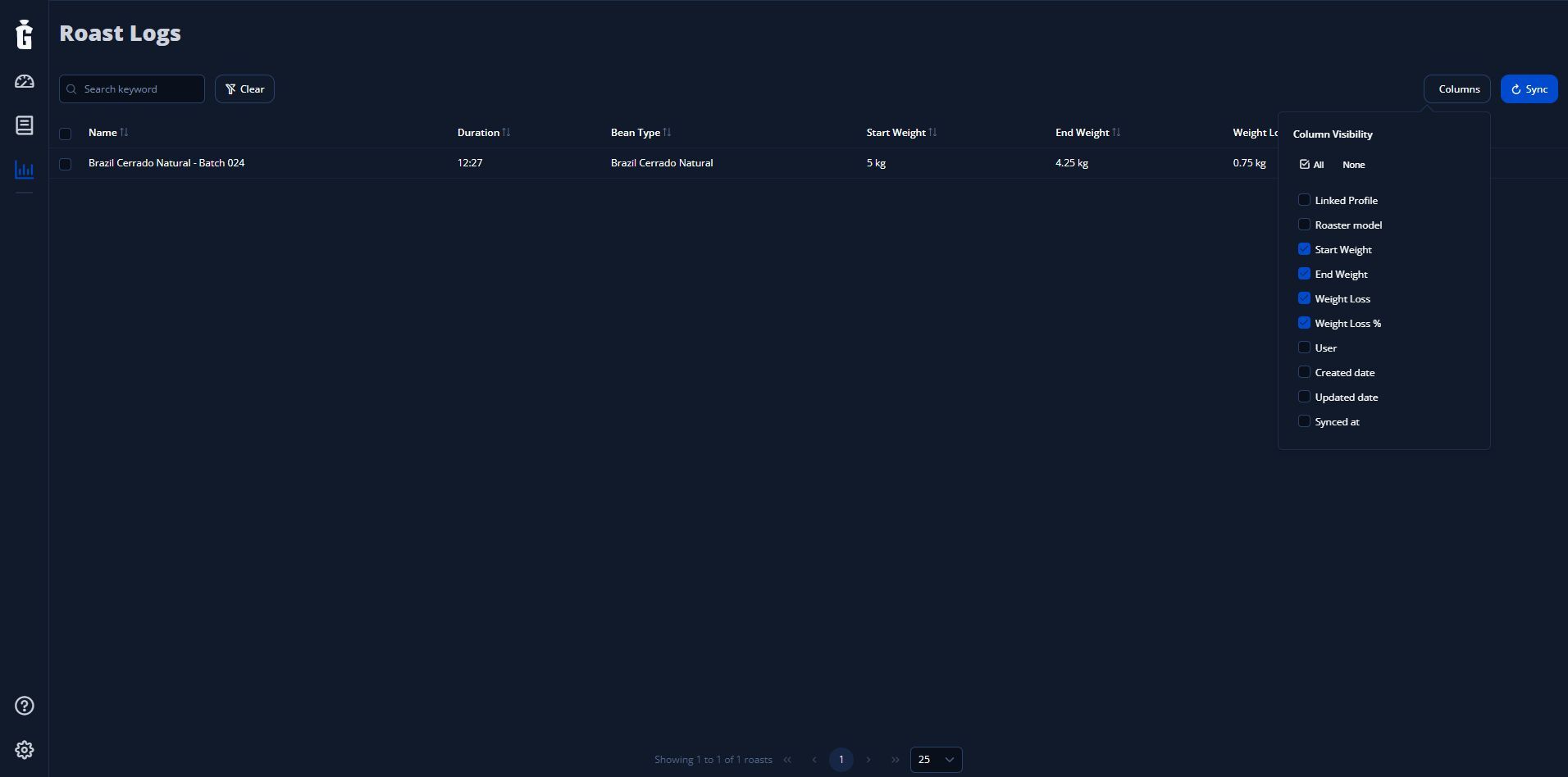
Enable Start Weight, End Weight, Weight Loss and Weight Loss % in Columns. Scroll within the menu if these options are not visible.
Open the roast itself to view or edit its colour readings.
If a value or save option looks wrong
| What you see | Check |
|---|---|
| No Save button | Change a value first. Save is hidden while the form matches the saved roast. |
| Save is disabled | Check both colour fields. Clear an invalid value or enter a value from 0 to 150. |
| Weight looks too large or too small | Check the displayed kg or lb unit and whether you included a container weight. |
| Loss shows 0% | Check for a missing or zero start or end weight. |
| End Weight changed after editing the loss | Editing Amount or Percentage recalculates End Weight. Enter the measured end weight again if needed. |
| Changes disappeared after closing | Reopen the roast, enter the values and select Save. |
If saving still fails, keep the exact error message and contact Giesen Support with your Profiler version, operating system and roast name.