
Create a timed buzzer reminder in Giesen Profiler 2, save it and use it during a roast. You do not need an existing roast profile or a previously recorded roast. Start by creating a new profile, then add your trigger.
Screen names and behaviour are based on Giesen Profiler 2.3.3. Screenshots show example data. The buzzer example is for a W series roaster with a supported buzzer. G series and other connections may offer different actions. Simulation is available only to Giesen Staff; this guide uses a connected roaster.
What a trigger does
A trigger is a rule: WHEN its condition is met, THEN Profiler requests one or more actions. For example, when roast time reaches 09:00, turn the buzzer on for two seconds.
Conditions can use time, Beans or Air temperature, RoR, events, or another trigger. Actions can include the buzzer and supported machine controls. Time means elapsed roast time, not the time of day.
Use Add AND to require a second condition. Both conditions must be true together. Add action adds another action to the same rule. To make one trigger wait for another, choose Condition → Triggers and select that trigger; moving rows up or down does not create a dependency.
When triggers run
| How you start | Profile triggers and recorded setpoints |
|---|---|
| Record, without a loaded profile | No profile triggers or recorded setpoints are started. |
| Play as Reference | The profile is a reference; its triggers and recorded setpoints are not started. |
| Normal playback with Play | The loaded profile's trigger rules and recorded setpoints are started. |
| Automatic start by charge detection, with a profile loaded | Starts normal playback, including triggers and setpoints, regardless of the default play mode. |
| Play with AI Control Beta, if available | While AI control is active, profile triggers and recorded setpoints are not started. If AI cannot start, Profiler falls back to normal playback, including triggers and setpoints. |
| Read-only connection | The manual playback option is Play as Reference. |
The dashboard play button shows and starts your default mode. Open its Play options to choose a different mode for that roast.
Play, automatic charge detection and an AI fallback can start the profile's triggers and setpoints. Inspect the whole profile before starting; adding a buzzer reminder does not make its other actions passive.
Start with a new profile
- Open Profiles and select Create.
- Enter “Trigger practice” under Profile Name. Set Bean Type and Start Weight for your batch, and check that Roaster model matches your roaster. Select Create to open the profile editor.
- Open Setpoints. A new profile includes default machine settings. For this buzzer-only example, open Air, Power, Pressure and Speed in turn. Use the trash icon beside each row to delete every setpoint, including the starting and ending rows. Use the back arrow to return to the category list. Check that all four tables are empty. Leave the Events start and end markers in place.
If Create is missing, ask your administrator to check your permission to create profiles. You do not need to record a roast first.
Create a two second buzzer reminder
This example uses the name First crack reminder, matching the screenshots. It is a timed reminder to check the roast at 09:00; it does not detect first crack. Choose a reminder time suitable for your own procedure.
- In the profile editor, open Triggers and select Add Trigger.
- Set Name to “First crack reminder” and leave Enabled on.
- Leave Before TP off. TP means turning point: the low point of the bean-temperature curve after charge. Profiler normally registers it automatically from the falling and recovering temperature curve. This trigger waits for the TP marker to appear on the chart.
- Leave Persist after roast stop off. For this test, let the buzzer finish its two-second Timer before stopping the roast.
- Under When, choose Condition → Time, Operation → greater than or equal to, and Value → 09:00.
- Under Then, choose Action → Buzzer. Buzzer has no Mode field; it switches on. Check that Timer is on and set to 2 s, its default. Do not select the stopwatch icon, which adds a Delay.
- Select Add. When editing an existing trigger, this button is Update.
- Check the new row: time is greater than or equal to 09:00; Buzzer is On for 2 seconds. Select Save at the top of the profile editor.
Check: saving the trigger with Add or Update puts it in the editor. Saving the profile with Save keeps that change in the profile.
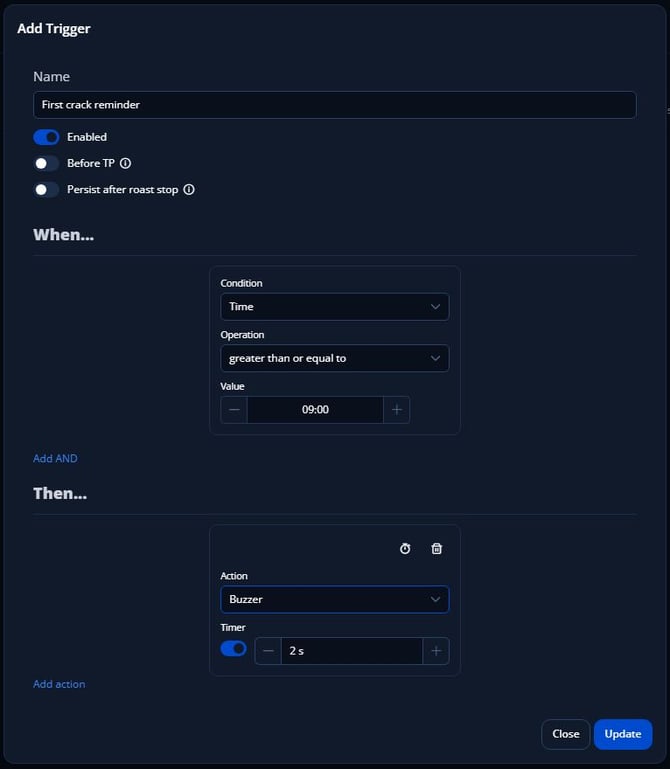
The full dialog shows First crack reminder with Enabled on, Before TP off and Persist after roast stop off. Time is greater than or equal to 09:00; Buzzer has a two-second Timer. The title remains Add Trigger when editing; select Update, then Save the profile.

In Trigger practice, the saved First crack reminder rule switches Buzzer on for two seconds at or after 09:00, once TP has been registered. It is a timed reminder, not automatic first-crack detection. Save the profile to keep the change.
Use the reminder during a roast
Before loading the practice profile, open Settings → General. For a manual practice test, turn off Initialize setpoints on profile load, Reset setpoints on profile finish and Charge Detection Auto-Start, then select Apply Changes. If these settings are hidden, ask your administrator to check them before a machine test. Review the first-recording settings checklist for the other start and stop options. With initialization on, loading a profile can already send its starting setpoints to the roaster.
In Profiles, select your saved Trigger practice profile and choose Load profile. This is unavailable during a roast. The profile then opens on the dashboard.
Your new profile has no recorded temperature curve. That is expected: it holds the reminder you created. During the roast, Profiler displays live temperature readings and checks the trigger against the current roast time. You can control the roaster manually while the reminder runs.
Check your roaster connection and confirm that the saved profile contains no setpoints and only the buzzer trigger. Prepare and charge your batch according to the roaster's operating procedure. When you start the roast in Profiler, open Play options and choose Play. Open Triggers to follow the reminder's status. The panel appears when the loaded profile contains triggers.
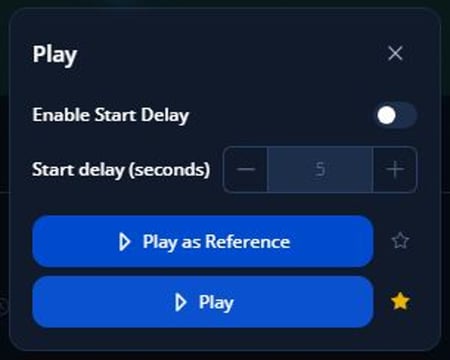
Open Play options on the dashboard and choose Play to run the loaded profile's triggers. Play as Reference displays the profile without starting its triggers or recorded setpoints.
At 09:00 or later, after TP has been registered, the example requests the buzzer action. Confirm that it sounds and switches off after two seconds. Let the Timer finish before selecting Stop. If you stop or cancel a pending switch-off early, check the machine and switch the buzzer off using its control if necessary.
A trigger normally fires once per playback session. Crossing the threshold again does not make it repeat automatically.
Understand the trigger status
| Status or display | Meaning and next check |
|---|---|
| pending | The rule has not fired. Check playback mode, its conditions and the TP marker. |
| executed with a time | The conditions were met and actions were processed or scheduled. This can also occur with Enabled off. It does not confirm a machine response or a completed delayed action. |
| invalid, error or a red message | Read the message and correct the configuration before playback. |
| Timer or countdown | A Timer switch-off or pulse end is pending. Actions waiting for a Delay are not shown in this list. |
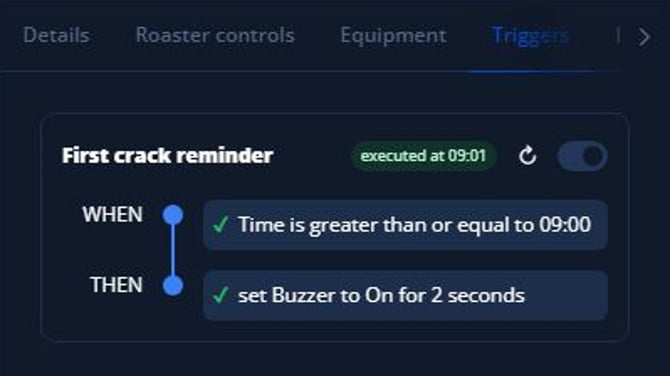
The dashboard Triggers panel shows First crack reminder as executed at 09:01. This confirms that Profiler processed or scheduled the action; it does not confirm a physical buzzer response. Screenshot captured using example data.
Change or disable a trigger
Before the next roast, open Profiles → Edit profile → Triggers. Select the row, or open its three-dot menu and choose Edit. Make the change, select Update, then Save the profile. If Edit profile is missing, check your editing permissions and whether the profile belongs to a planned roast.
To remove an unwanted trigger, open its three-dot menu and choose Delete, then Save the profile. Check dependencies before removing a rule: another trigger may use it as a condition.
Enabled off does not remove a rule from playback. Its conditions can still be evaluated, it can show executed and activate dependent triggers, and it can cancel an existing Timer for the same control. In version 2.3.3, a Pulse action can still run with Enabled off. For this example, remove unwanted rules from the practice profile instead of relying on Enabled off.
After execution, the dashboard switch is unavailable. Reset trigger to pending resets the display and dependency state; it does not make the trigger fire again during that roast.
Important options
Before TP: Off makes the trigger wait for TP. On limits it to the period before TP has been registered. If its condition is only met after TP, the rule will not fire with this option on. During a test, check the chart's TP marker; a flat temperature trace may never produce one.
Profile Event and Roast Event: Profile Event uses the event's saved time in the loaded profile. Roast Event waits for the event registered in the current roast. If you want to respond to the current first crack, choose Roast Event and register First Crack in that roast; a saved profile event is a time reference.
Delay and Timer: For Buzzer, Delay waits before switching it on. Timer schedules a separate command to switch it off again. A two-second Delay is different from a two-second Timer. Other action types may offer different options.
Persist after roast stop: With this off, stopping the roast cancels scheduled trigger actions, including an unfinished Timer's switch-off. Profiler does not undo the command already sent, so check the actual control and switch it off if necessary. With this on, scheduled actions can continue after Stop.
In Pending actions from previous roast, Turn OFF Buzzer means a switch-off is still waiting. Cancel removes that switch-off; it does not turn the buzzer off. The list shows Timer switch-offs and pulse endings, not actions still waiting for a Delay. A persistent delayed action can therefore start after Stop without appearing in this list. Avoid Delay with Persist for your first example.
If the roaster connection is lost for several seconds, Profiler cancels all scheduled trigger actions when it detects active persistent timers and shows a warning. Check the machine controls after a connection loss; a cancelled switch-off is not a confirmed machine stop.
Operate charge, discharge and cooling according to the machine manual. Stopping a roast in Profiler is not an emergency stop for the roaster.
If a trigger does not work
- No Triggers panel: load a profile that contains triggers.
- Still pending: check normal playback, Enabled, all WHEN and AND conditions and the TP marker. With Before TP off, no TP means the rule cannot fire. Check live readings and temperature units.
- Missing event: add the event to the saved profile for Profile Event, or register it in the current roast for Roast Event.
- Action missing or locked: check the profile's roaster model, connection, supported controls and any controls requirement shown by Profiler.
- Executed without the expected response: check Enabled, timers, connection warnings and the actual machine response. Executed alone is not confirmation of successful control.
- Changes disappear: select Add or Update in the trigger dialog and Save in the profile editor.
If you still need help, email support@giesen.com with your Profiler version, roaster model, playback mode, a screenshot of the full trigger and the exact message. Include the event, time or reading you expected to activate it.
Continue with Record your first roast or Settings for your first recording.