
Use these settings when you operate your first roast manually and record it with Record. Start without a loaded profile. The short checklist is also in Record your first roast; this article explains where to find the options and what they do.
Check the settings before roasting. Screenshots use example data.
1 Start without a loaded profile
Start without a loaded profile. If a profile name and Play button appear below the chart, click the cross next to the profile name outside an active recording. The saved profile is retained; you are only removing it from the dashboard. The start button now shows Record.
Check: the start button below the chart shows Record.
2 Prevent automatic initial settings
Open Settings → General → Roasting. Turn Initialize setpoints on profile load and Reset setpoints on profile finish off.
A setpoint is a desired machine setting, such as power or airflow. Initialize setpoints on profile load can send initial settings when you load a profile. After a successful Save, the saved profile is loaded on the dashboard. Turning this option off prevents that step from sending initial setpoints. Turning Reset setpoints on profile finish off prevents initial setpoints from being sent back when a loaded profile finishes.
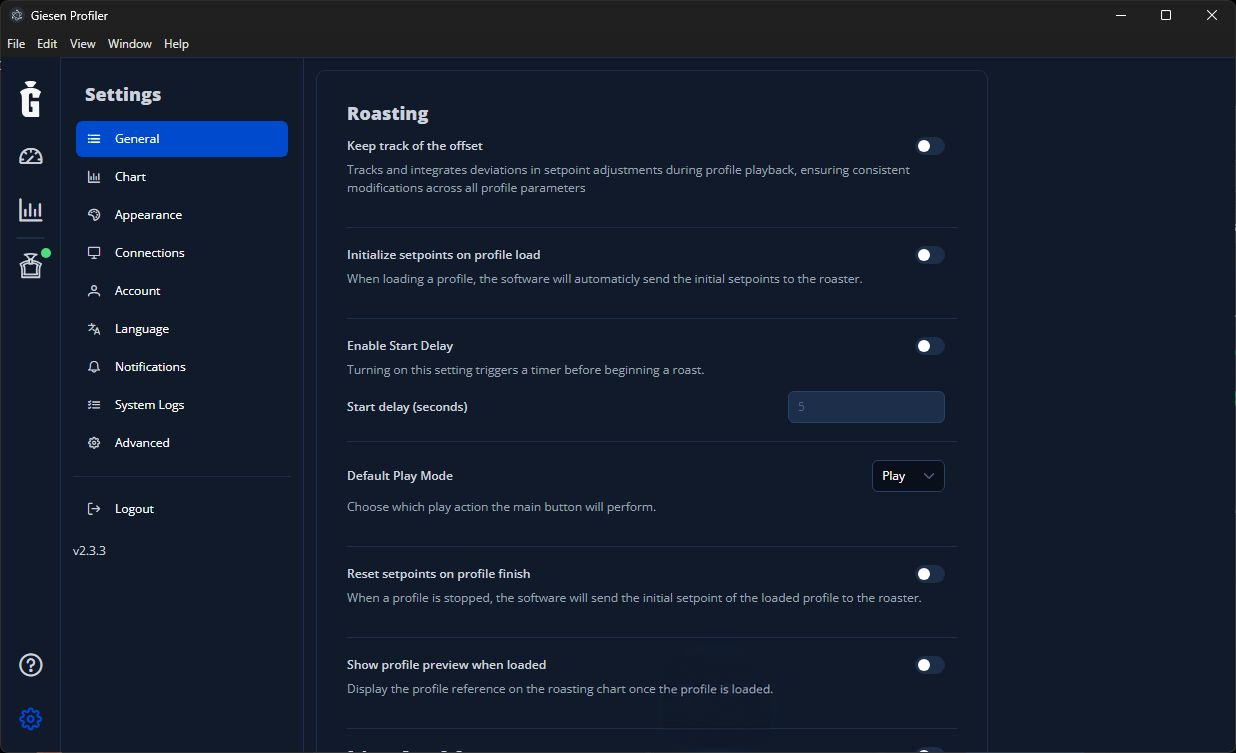
Roasting: the two switches for initial setpoints and reset are off.
Check: both switches are off. These settings apply to this manual workflow; profile playback is a separate workflow.
3 Keep control of the start
Open Settings → General → Automation. Turn Charge Detection Auto-Start off. Leave Enable Discharge Detection on.
Without a loaded profile, charge detection does not start a recording. With a loaded profile, Charge Detection Auto-Start can start profile playback automatically, including setpoints. The Off position also prevents this after your saved profile has been loaded.
Enable Discharge Detection can detect discharge and finish recording. If Discharge Detected appears after discharging, choose Stop Now or let the countdown finish. Use Continue Roasting only if detection was incorrect and the roast is still in progress. If Save Profile is already open, recording has stopped.
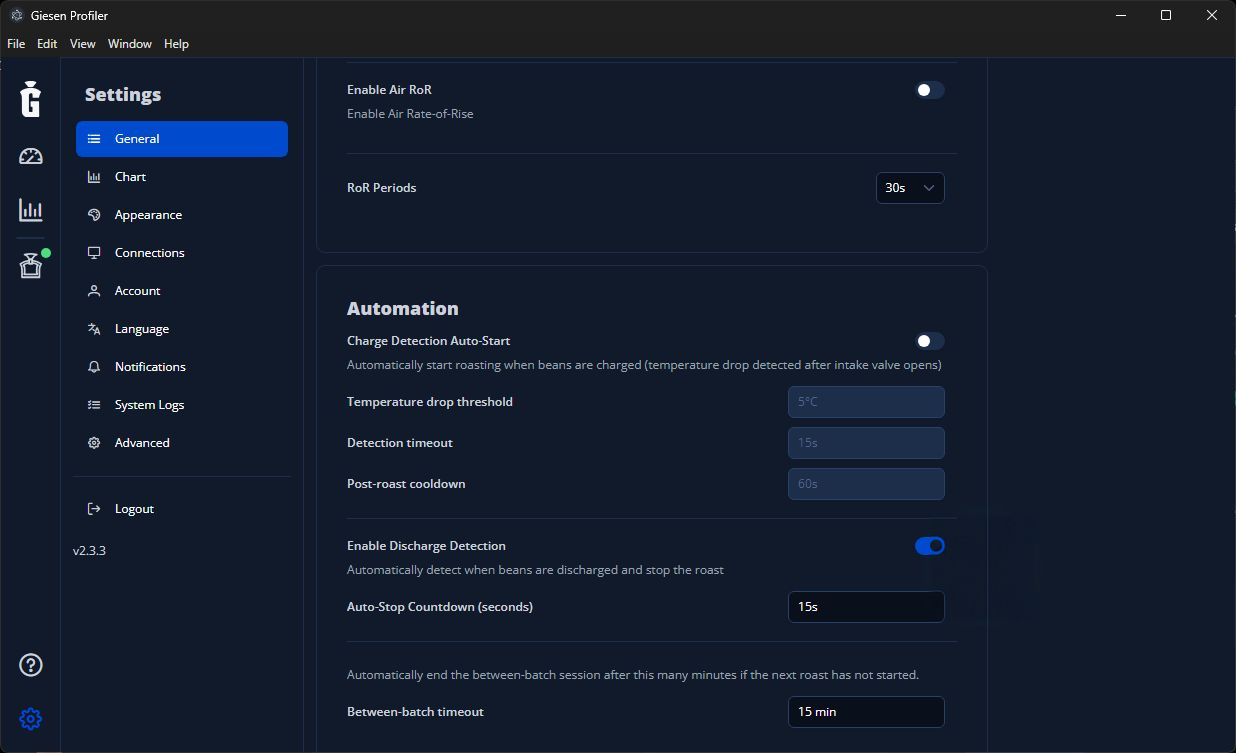
Automation: automatic start is off and discharge detection is on. This example uses a 15-second countdown.
Choose Apply Changes at the bottom to apply the changes under Roasting and Automation. Reopen the settings and check that both setpoint options and Charge Detection Auto-Start are off and Enable Discharge Detection is on. The example uses a 15-second countdown.
4 Start immediately and operate the intake yourself
On the dashboard, open the arrow next to Record. Turn Enable Start Delay off and, if available, turn Open Intake on start off.
With Enable Start Delay off, Record starts without a configured delay. With Open Intake on start off, you control the intake yourself; charge according to the machine procedure.
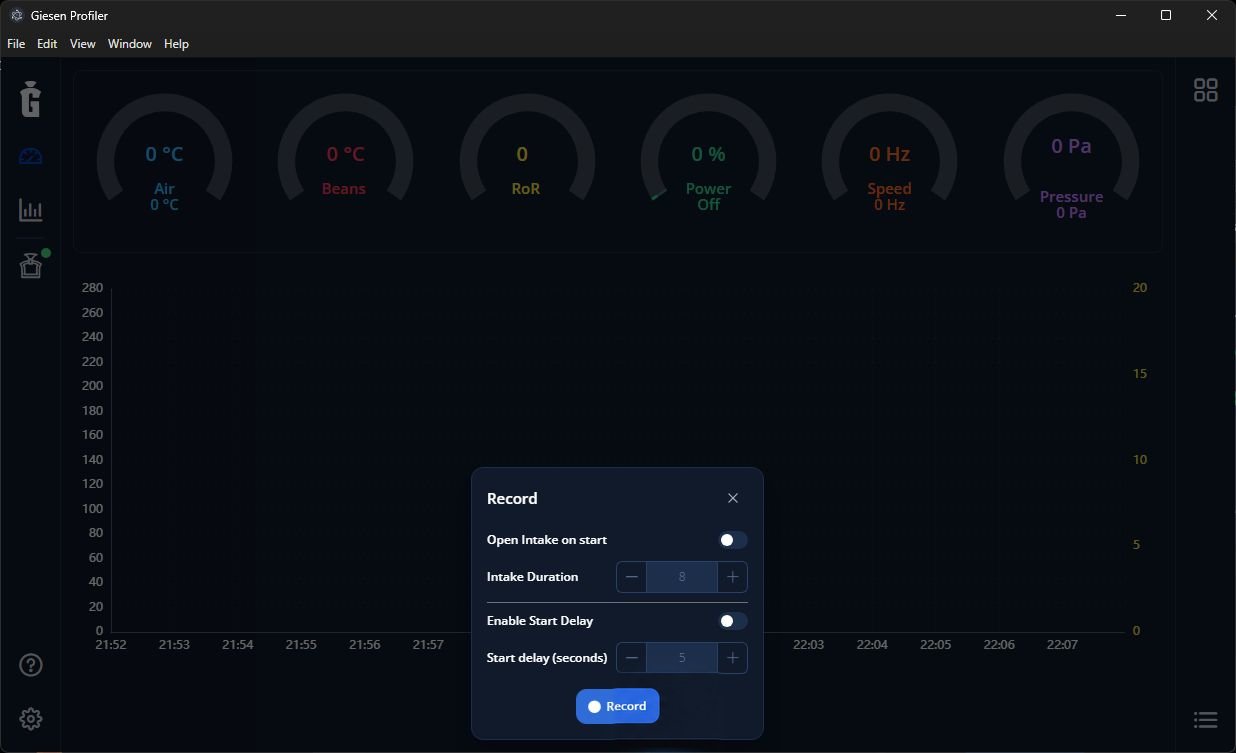
Arrow next to Record: automatic intake and start delay are off.
Check: start delay and automatic intake are off. Options in this Record menu are saved immediately.
Continue with recording
Weigh the green beans and prepare the roaster according to your roasting procedure. Continue with Record your first roast.
Set up Profiler before roasting. Operate, charge, discharge and cool the roaster according to its machine manual. Stop in Profiler is not an emergency stop for the machine.