
Use green coffee inventory in GiesenCloud to identify the lot and quantity used for each roast in Giesen Profiler 2. Check the saved roast and its Cloud stock movement so that your inventory matches the coffee you actually used.
Subscription required
Green coffee inventory is included in the Commercial and Industrial plans. View plans.
Before you start
Use the same company in GiesenCloud and Profiler, with access to Inventory and Cloud synchronisation. Have the coffee's lot identification, available green stock and measured batch weight ready. If Inventory is unavailable, check your company's access with its administrator.
This guide follows one green coffee lot from Cloud creation to a manual roast in Profiler. You do not need an existing roast profile. The example uses 60 kg of received stock and 5.00 kg for one batch.
Create a green coffee lot in GiesenCloud
In the Cloud sidebar, Coffees is your coffee catalog: the coffee's identity and origin. Inventory holds the physical stock lots and their quantities. A catalog coffee alone does not add stock. Use a separate inventory lot for each delivery or lot you need to track.
1. Open the inventory form
Sign in to GiesenCloud, choose the company that owns the stock, then open Inventory → Inventory → Add New Item.
2. Enter the lot and received quantity
Complete General Information using the coffee you actually received.
| Field | What to enter | Example |
|---|---|---|
| Item Name | A recognisable name for the stock lot | Brazil Cerrado Natural |
| Item Type | Coffee | Coffee |
| Initial Quantity (KG) | The total green coffee stock you are adding, in the displayed unit | 60 kg |
| Status | Available, when the coffee is ready to use | Available |
| Lot Number | The supplier's lot reference or your own traceable lot code | BCN-2026-10 |
| Arrival Date | The actual date the coffee arrived | Your delivery date |
Initial Quantity is the stock received, not the weight of one roast. For example, a 60 kg lot can supply several 5 kg batches. These quantities are examples; use your own measurements and your roaster's operating procedure.
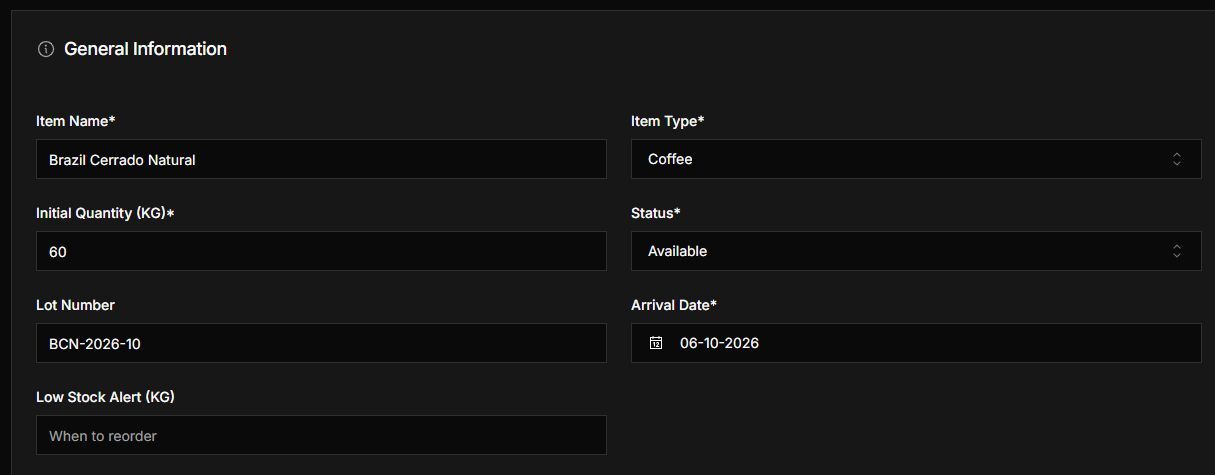
Example lot form with 60 kg of received green coffee. The arrival date shown is illustrative.
3. Link the lot to a coffee
Under Coffee & Lot Details, choose an existing coffee in Coffee. The form inherits its origin and varieties. Reuse the existing catalog entry for another delivery of the same coffee; give the new inventory lot its own lot reference.
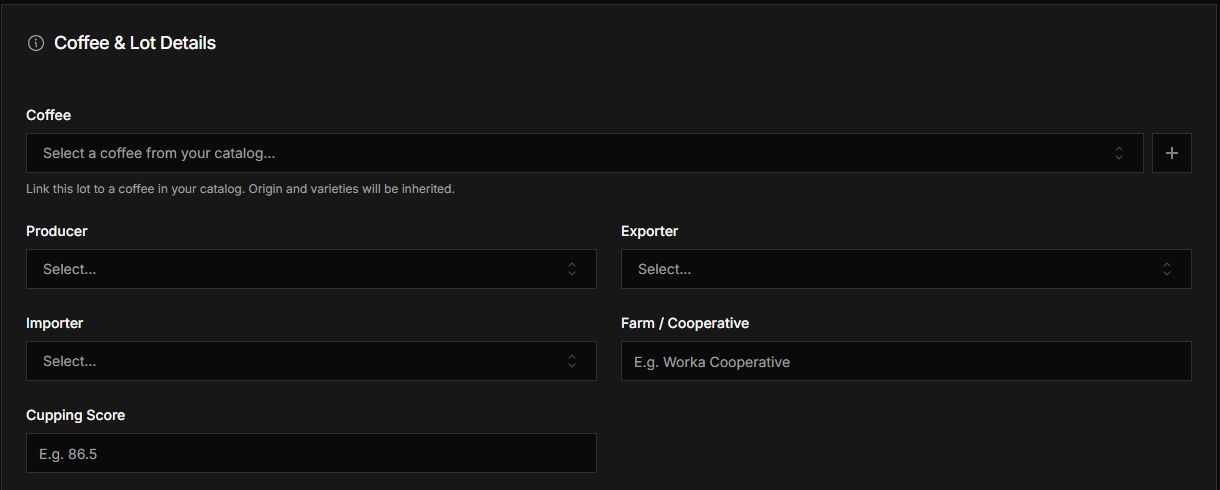
Choose a coffee from the catalog, or select + to create its catalog entry.
If the coffee is not in your catalog, select the + button beside Coffee (Create new coffee). Enter its Name, and add Country of Origin and Region/Farm when known, then select Create. Finish the inventory form afterwards: creating the catalog coffee is a separate step from saving the stock lot.
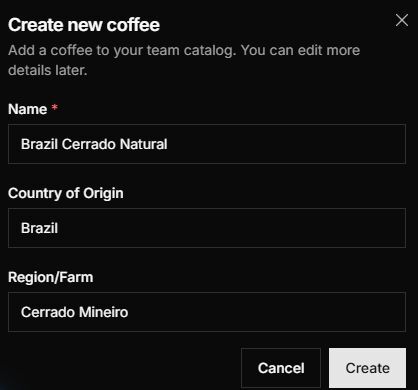
Enter the coffee's name and known origin, then select Create. Save the inventory lot separately.
4. Save and check the lot
Add any supplier, warehouse location, packaging and other details your team uses. For green coffee measured by weight, keep Unit Type as Weight and check the displayed unit before entering quantities. Optional fields can be completed later.
Select Create Inventory at the bottom of the form. Open the saved lot from the inventory list and check its Current Stock, lot identification and Available status before using it in Profiler. Creating a lot does not require an assigned roast profile.
Select the coffee in Profiler
Sign in to Profiler with an account that has access to the company holding your stock. Check Settings → Account → Team Name. You need Inventory access and an internet connection to load the available lots.
For a manual roast without an existing profile:
- Connect your roaster and select Record on the dashboard. Follow your roaster's operating procedure before charging.
- Select No details yet to open Details. This control appears after recording starts.
- In Profile Name, enter a recognisable name for this batch. You are naming the recording; you do not need to load an existing profile.
- Select Choose lot. The Inventory window opens. Check the lot and quantity before charging.
If you see Bean Type instead of Choose lot, check your company's Inventory entitlement. A free-text coffee name does not select a stock record.
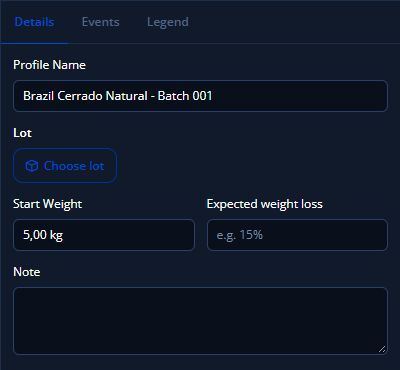
Example: open Details during a manual recording and select Choose lot.
- In Inventory, check Start Weight and its unit. Enter the measured green coffee weight you will charge for this batch.
- Choose the coffee under Lot name. Check its name, inventory number and available quantity so that you use the correct lot.
- Enter the green coffee quantity under Quantity to Use. For this single-lot batch, make it equal to Start Weight. For example, a 5.00 kg batch uses 5.00 kg from the selected lot.
- Check that the selection summary matches the batch weight and that no stock or quantity error is shown.
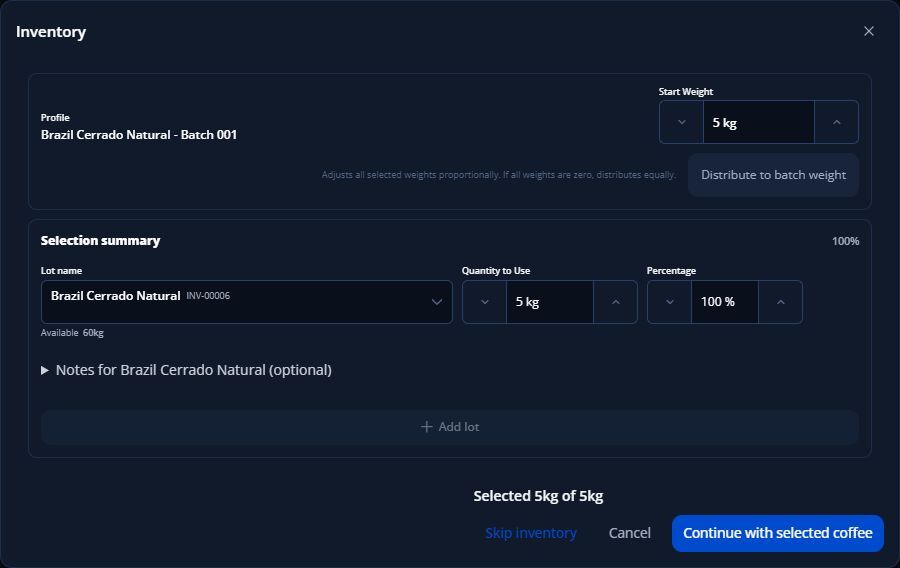
Example: INV-00006 has 60 kg available. The selected 5 kg matches the batch's Start Weight.
- Select Continue with selected coffee.
The dashboard's Details panel now shows the lot. Start Weight is marked From lot. Use Edit lot to change the selected quantity before saving.
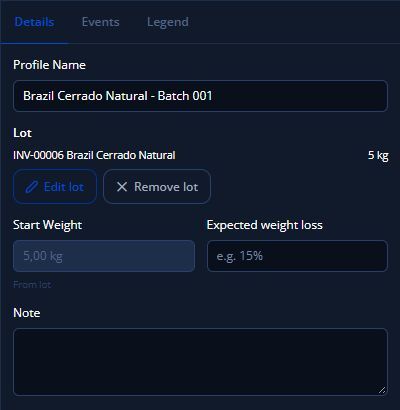
After confirming, Details shows the selected lot and 5 kg quantity. Start Weight comes From lot; use Edit lot to change it.
The example weight is illustrative, not a recommended batch size. Use the correct capacity and procedure for your roaster.
Continue the roast and save
Recording is already running. Follow Record your first roast with Giesen Profiler 2 for the remaining roasting steps and event markers. Check the selected lot and its quantity before charging.
- After discharge and cooling, enter the measured roasted End Weight in the save window and select Save. You can also correct the saved batch later by following Add roast weights and colour measurements.
The green quantity used from the lot and the roasted end weight describe different measurements. For example, 5.00 kg of green coffee can produce 4.25 kg after roasting; the green coffee usage is still 5.00 kg.
- In Settings → Account → Cloud, enable Cloud Sync and select Apply Changes if you change it. Check the saved roast's sync status. Selecting a lot alone does not update its Cloud stock.
Check the stock movement in GiesenCloud
- In GiesenCloud, open Roasting → Roasts and confirm that the saved roast is present.
- Open Inventory → Inventory, select the lot, and scroll to Transaction Log.
- Find the corresponding Roast transaction. Compare Amount Changed, Old Quantity and New Quantity with the green coffee used for that batch.
For a 5.00 kg batch taken from 60.00 kg of stock, the expected remaining quantity is 55.00 kg, provided there are no other stock movements. Use the transaction details to distinguish your roast from other batches.
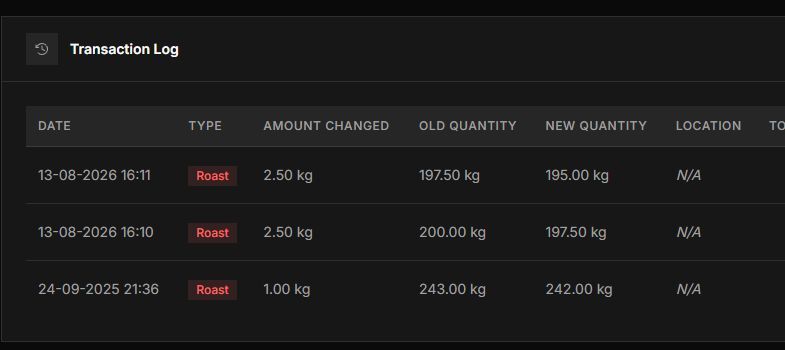
An existing test lot's transaction log. The top row shows 2.50 kg used and stock decreasing from 197.50 kg to 195.00 kg. This is a separate example from the 60 kg lot form.
If the roast or its stock movement is missing, resolve the sync issue before adjusting stock manually. A roast saved on the device can still have a pending or failed Cloud upload.
If the lot is missing or the upload fails
| What you see | What to check |
|---|---|
| Details is not available | For a manual roast without a loaded profile, connect the roaster and start Record, then select No details yet. If Record is disabled, check the connection and recording access. |
| Bean Type instead of Choose lot | Check Inventory access for the company used in Profiler. |
| Lot is not listed | Check the company, available status and remaining stock in GiesenCloud. Reopen the picker after correcting the stock record. |
| Failed to load coffee inventory | Check internet access and use Retry. |
| Continue with selected coffee is disabled | Select a lot, enter a positive quantity within its available stock, and make the selected total match Start Weight. |
| Start Weight cannot be edited | It comes from the selected lot. Use Edit lot to change the batch quantity. |
| Roast saved on this device, but the cloud inventory could not be updated | Keep the saved roast and resolve its sync error before assuming the stock has changed. |
Use Resolve cloud synchronisation problems in Giesen Profiler 2 for sync errors. Avoid entering a second stock deduction while the original roast upload is still unresolved; check the Cloud record first.